1. Introduction
Import Custom Properties (Batch Parameter Import) is an efficient tool provided by Snail Addin that allows you to write custom properties to multiple model files in SolidWorks at once.
Typical scenarios:
- Before project delivery, fill in part numbers, materials, batch numbers, and other properties for an entire batch of parts/assemblies
- Batch-sync parameters from Excel spreadsheets to models, avoiding manual entry one by one
- Update properties for all components with one click from the assembly component tree
Key advantages:
- ✅ Supports direct copy-paste of multiple columns of data from Excel / CSV
- ✅ Automatically finds files in the assembly component tree (including nested sub-assemblies)
- ✅ Supports 4 property types: Text, Date, Number, Yes or no
- ✅ Automatically generates a CSV import report, making failure reasons clear at a glance
- ✅ Automatically overwrites existing properties with the same name—no manual cleanup needed
2. Preparation
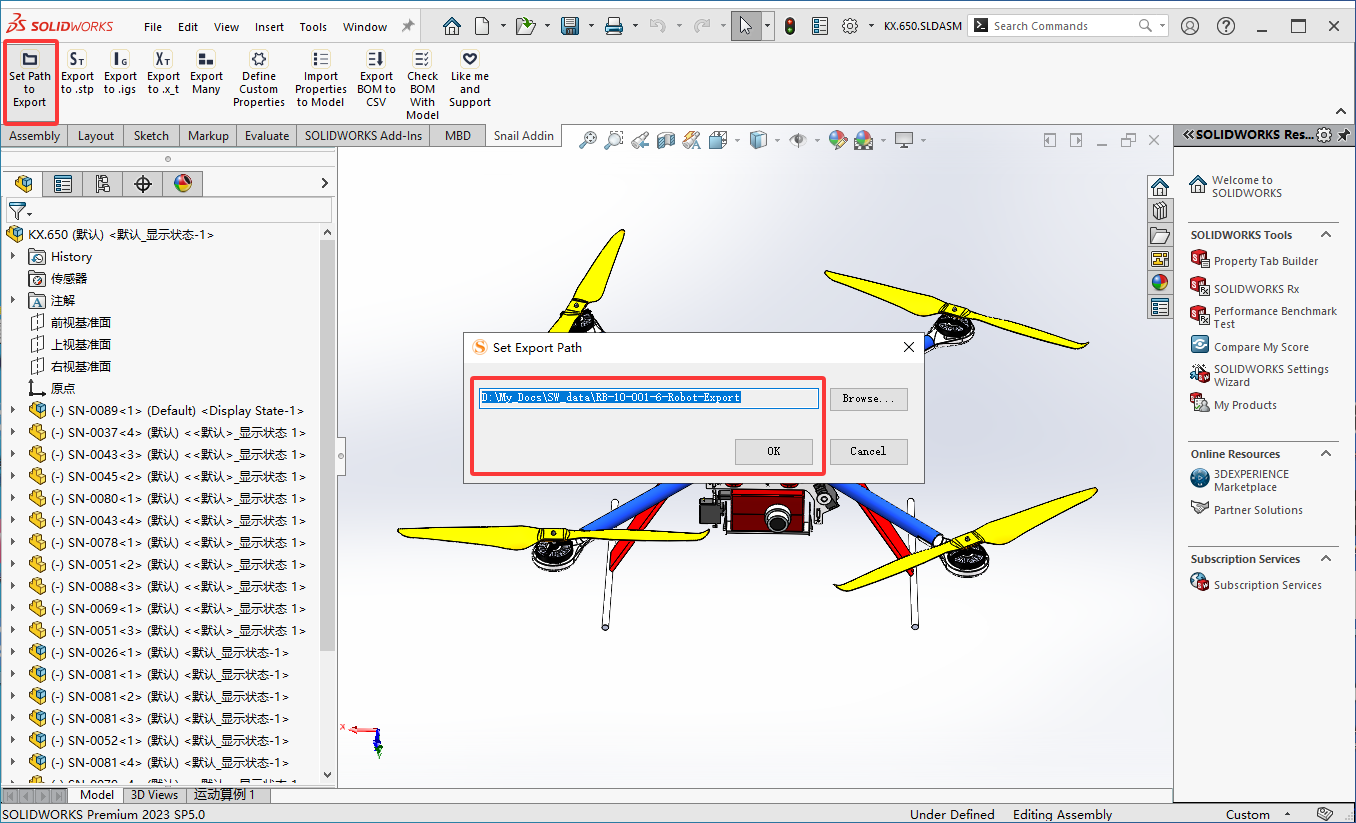
2.1 Set the Report Export Path
The import report will be saved to the “export path” directory.
- In the Snail Addin Command Tab, click the Set path button
- Select or create a directory (e.g.,
D:\SnailReports) - Click OK to save
💡 If no export path is set, the import function still works—it just won’t generate a CSV report.
2.2 Set the Search Path (Optional)
If your models are not in the current assembly but scattered in a folder, you need to set the search path:
- Open the Import Custom Properties dialog
- Click the Search Path button
- Select the directory containing all SolidWorks files
- Click OK
💡 How it works:
- When an assembly is active: files are searched in the assembly component tree first (recommended)
- When no assembly is active: files are searched in the Search Path directory
- The two methods are never mixed and never fall back to each other
2.3 Define Properties (First-Time Use)
On first use, you need to tell the add-in “which properties to import.”
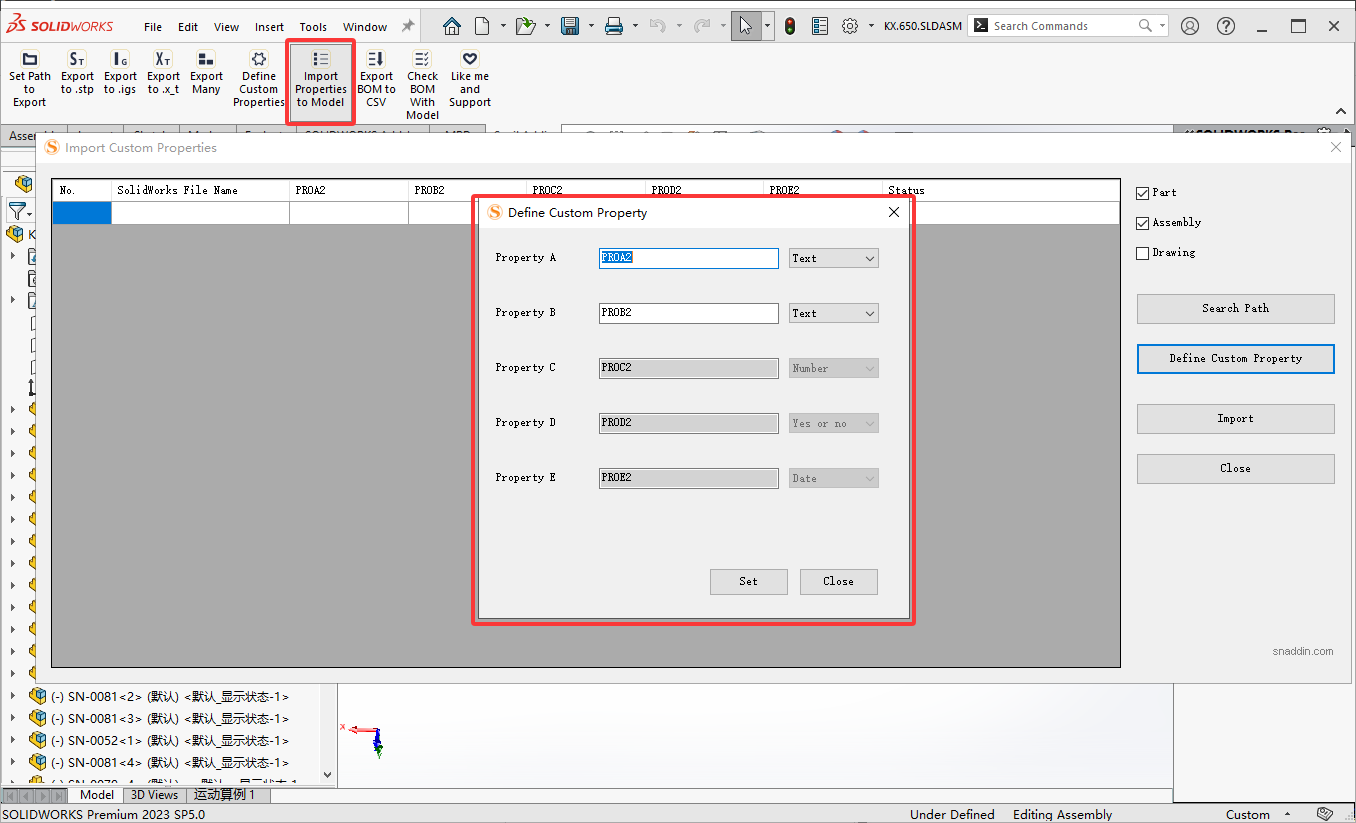
- Open the Import Custom Properties dialog
- Click the Define Custom Property button
- In the dialog that appears, fill in:
| Property Slot | Property Name | Type |
|---|---|---|
| Property A | e.g., PartNo | Text / Date / Number / Yes or no |
| Property B | e.g., Material | Same as above |
| Property C | e.g., BatchDate | Same as above |
| Property D | (Optional) | Same as above |
| Property E | (Optional) | Same as above |
Type descriptions:
| Type | Description | Example Values |
|---|---|---|
| Text | Text (default) | Steel, A001 |
| Date | Date | 2025-01-15, 2026/9/17 |
| Number | Number (supports integers and decimals) | 18, 3.14 |
| Yes or no | Yes/No | Yes, No, Y, N, 1, 0 |
Click Set to save. The configuration is persisted and automatically loaded next time.
💡 Property name rules:
- Can be left empty (that property won’t be written)
- Non-empty property names must not be duplicated
- Chinese characters are supported (e.g.,
材料,批次)- Spaces are allowed
3. Steps
Step 1: Open the Dialog
In the Snail Addin toolbar in SolidWorks, click the Batch Import button to open the Import Custom Properties dialog.
📌 This function is only available in parts and assemblies. The button will be grayed out in drawings.
Step 2: Check the Target File Types (i.e., Which File Types the Parameters Should Be Written To)
There are 3 checkboxes on the right side of the dialog:
- ☑ Part: Only applies to part files
- ☑ Assembly: Only applies to assembly files
- ☑ Drawing: Only applies to drawing files
You can check some or all of them. If none are checked, clicking Import will show an error.
💡 The checkbox states are automatically remembered and restored next time you open the dialog.
Step 3: Fill In the Parameter Data
Fill in the parameter data in the table. The table has 8 columns:
| Column | Description |
|---|---|
| No. | Auto-numbered; no need to fill in manually |
| SolidWorks File Name | Model file name (with or without .SLDPRT / .SLDASM extension) |
| Property A~E | The value for the corresponding property (the column headers show the names you defined in Define) |
| Status | Import result, displayed automatically |
Method 1: Copy-Paste from Excel (Recommended)
- Prepare your data in Excel (assume the following format): File NamePart No.MaterialBatchQtyBracketBKT-001Steel2025-01-1510PlatePLT-002Aluminum2025-01-165
- Select the cell range to paste (note: do not select the header row)
- Press
Ctrl+Cto copy - Switch to the Import Custom Properties dialog in SolidWorks
- Click the cell in the table where you want to start filling
- Press
Ctrl+Vto paste
Paste results:
- The first column is automatically filled with file names
- Subsequent columns are automatically filled with the corresponding property values
- Supports Tab-separated (Excel default) and comma-separated (CSV)
- The No. column is auto-numbered
Method 2: Manual Input
Double-click a cell or press F2 to enter data. Press Tab to jump to the next column and Enter to move to the next row.
Step 4: Delete Unneeded Rows (Optional)
- Select the cell(s) to delete
- Press the
Deletekey - Confirm the deletion
Multiple selection is supported, so you can delete multiple rows at once.
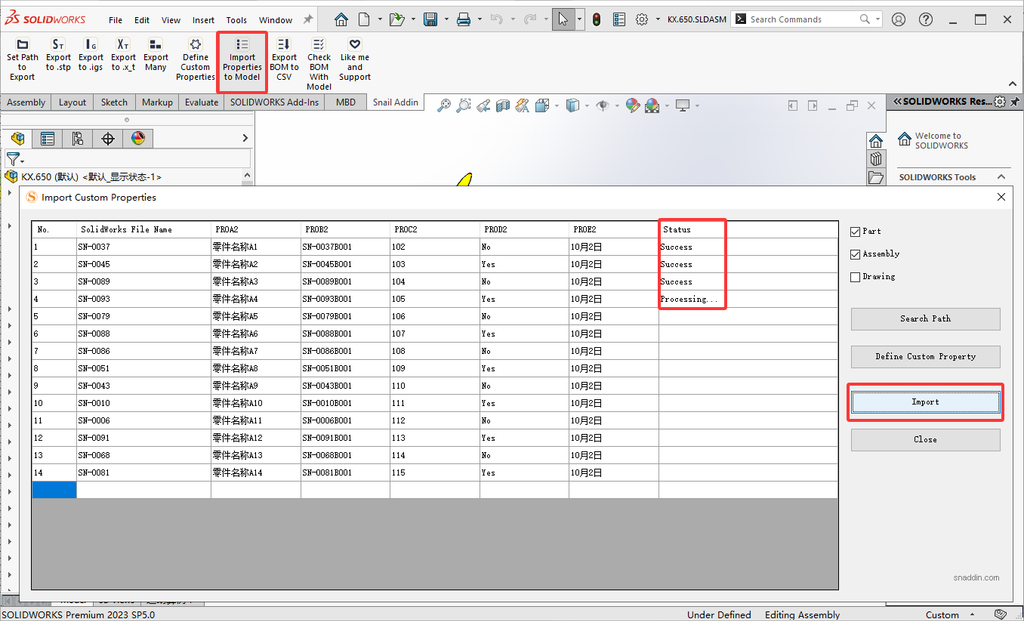
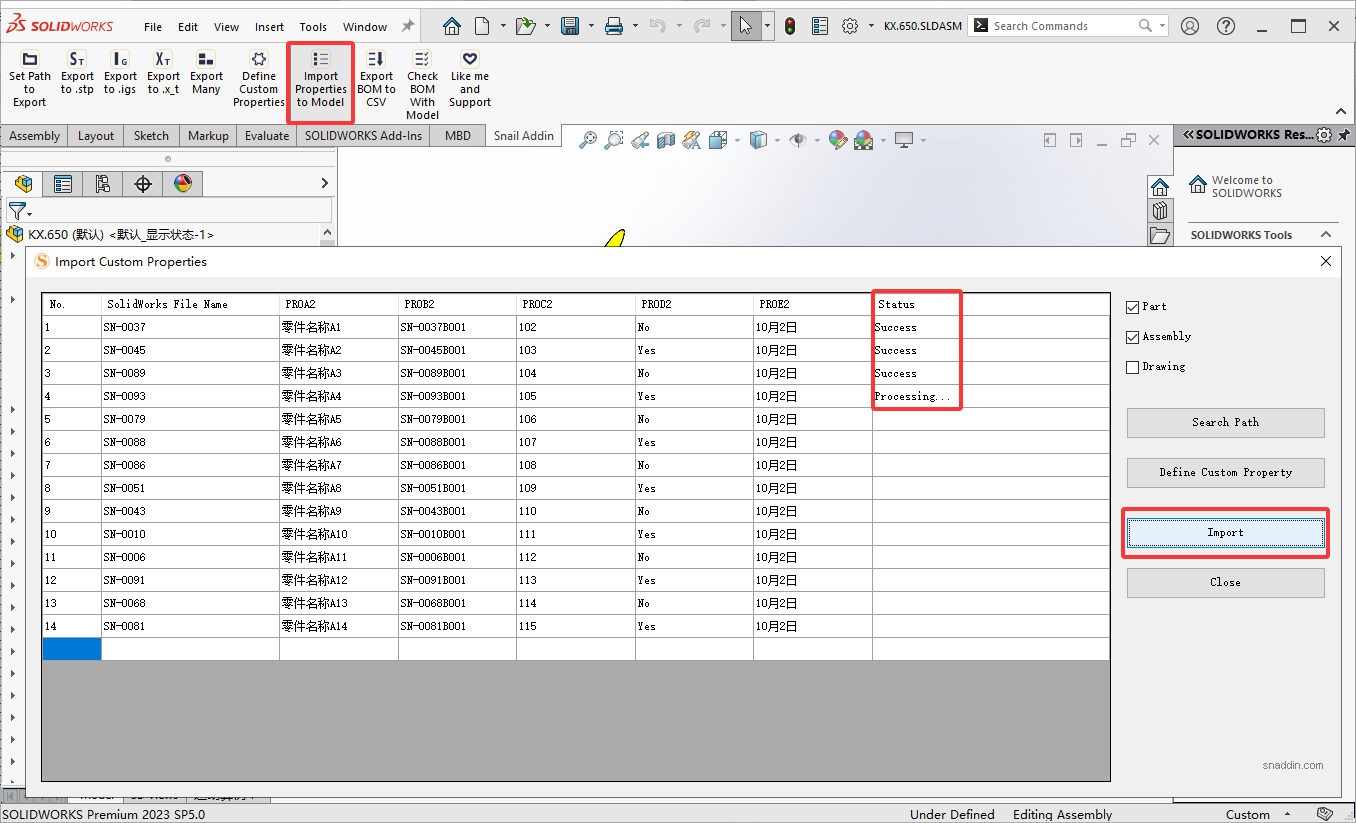
Step 5: Click Import to Start
Once you’ve confirmed the data, click the Import button.
Import process:
- The Status column shows
Processing... - After each row is processed, the Status updates with the result
- A summary popup appears when everything is done
4. Import Result Explanation
4.1 Status Column Contents
| Status | Meaning | Action |
|---|---|---|
| Success | Import successful | ✅ No action needed |
| Not Found | Corresponding file not found | Check the file name spelling or Search Path settings |
| Failed (invalid Number) | Value does not meet type requirements | Check whether the value is a valid number |
| Failed (invalid Date) | Invalid date format | Check the date format, e.g., 2025-01-15 |
| Failed (invalid Yes or no) | Invalid Yes/No value | Use Yes / No / Y / N / 1 / 0 |
| Failed (save error X) | Save failed | Check whether the file is locked by another program |
| Skipped (type not selected) | File type not checked | Check the corresponding type in the checkboxes |
| Skipped (no property values) | No property values were entered on this row | Enter at least one property value |
Red text indicates failure or not found and requires attention.
4.2 Summary Popup
After the import finishes, a statistics window appears:
text
Import finished.
Success: 25
Failed: 2
Not Found: 3
Skipped: 1
If an export path is configured, the report file location is also shown, e.g.:
text
Report: D:\SnailReports\ImportReport.csv
4.3 CSV Report
The report file is saved in the export path directory with the name ImportReport.csv.
Each import overwrites the previous report.
Open it with Excel—it contains:
- Header info (time, source, total rows)
- Each row’s file name, status, and time
- Summary statistics
5. FAQ
Q1: How do I resolve “Not Found”?
Troubleshooting order:
- Check the file name spelling:
SN-0093andSN-0093Aare completely different names - Check the active assembly: if the file name is in the current assembly component tree, the add-in will find it automatically; otherwise, you need to set the Search Path
- Check the extension: file names without
.SLDPRTare still recognized; if you include one, make sure it’s correct - Check the file path: manually open the file in SolidWorks to see if it loads correctly
Q2: I don’t see the property in the property panel after import?
Possible causes:
- The active document is not the target file: properties are written to the file on disk, not to the currently open document
- Configuration-specific vs. Custom: the add-in writes to the “Custom” tab properties
- Reopen the file: close and reopen the model, then go to Tools → Properties → Custom tab
Q3: Will existing properties with the same name be overwritten?
Yes. The semantics of import is “force set.” If the model already has a property with the same name:
- Same type → value is overwritten directly
- Different type → old property is deleted first, then a new one is created (old value is lost)
💡 If you want to keep the old property, rename it in the model first or use a non-conflicting property name.
Q4: How should I format dates?
Several common formats are supported:
2025-01-152025/1/152026/9/171/15/2025(US format)
It’s recommended to use YYYY-MM-DD or YYYY/M/D consistently to avoid ambiguity.
Q5: How do I fill in Yes/No properties?
The add-in automatically recognizes the following values:
| Truthy (writes Yes) | Falsy (writes No) |
|---|---|
Yes / yes / YES | No / no / NO |
Y / y | N / n |
True / TRUE | False / FALSE |
1 | 0 |
💡 Case-insensitive; all these variations are supported.
Q6: How many files can I import at once?
- Free version: up to 37 rows
- Pro / Elite version: up to 500 rows
Rows beyond the limit are skipped, and the Status column shows Skipped.
Q7: Will importing modify my models?
Yes. The import writes directly to disk files, including:
- Modifying custom properties
- Auto-saving files
Recommendations:
- Before first use, test on copies
- Or use version control (e.g., PDM / SVN) for backups
- Confirm the results meet expectations before running on production models
Q8: What is the import report for?
Uses:
- Review: which files succeeded, which failed
- Traceability: when the import was executed and from what source
- Correction: fix data based on the failure reason and re-import
- Delivery: include as part of delivery documentation, proving that properties were batch-updated
Q9: Can I import multiple properties at once?
Yes. Up to 5 properties can be imported at once (Property A~E).
- Free version: 2
- Pro / Elite version: 5
If more than 5 are needed, import in two passes.
Q10: Why do the column headers differ from what I defined?
Column headers show the Property Name saved in config.txt. If the names you defined are not showing:
- Check whether the names in the Define Custom Property dialog were saved successfully
- Close and reopen the Import Custom Properties dialog to refresh the headers
- Check whether you clicked the Set button
6. Practical Tips
Tip 1: Prepare Data in Bulk with Excel
Maintain a list of all files’ properties in Excel. Before each import, only update the columns that need changing, then sync them all at once with Ctrl+C / Ctrl+V.
Tip 2: Use “Find” to Filter Failed Rows
After importing, open ImportReport.csv in Excel and sort by the Status column:
- Rows with
Successcan be ignored Not Foundrows should be handled firstFailedrows should have their value format checked
Tip 3: The Assembly Component Tree Is “Path-Free”
If your models are all in one assembly (including nested sub-assemblies), you don’t need to set the Search Path—the add-in reads paths directly from the component tree. This is the most convenient way.
Tip 4: Test with a Small Batch First
On first use, test with 3–5 files. Once you’re sure the results are correct, run the batch operation.
Tip 5: Use “Set Path” for a Unified Export Location
The path set in Set Export Path is shared by the batch import report. This keeps your reports organized in one directory.