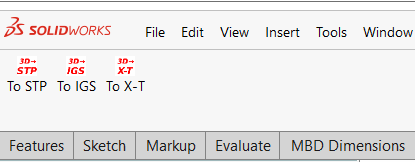
Icon Size and Format
SolidWorks supports multi-size icons for high-DPI screens. The sizes supported by the ICommandGroup.IconList property include: 20×20, 32×32, 40×40, 64×64, 96×96, and 128×128 pixels. The icon file for each dimension shall contain images of all buttons and separators at that resolution, using a 256-color palette.
Icon files support PNG and BMP formats. PNG with an alpha channel is recommended for better transparency.
Core Icon Properties
The ICommandGroup interface provides two sets of critical icon properties:
| Property | Description |
|---|---|
| IconList | Icons for toolbar buttons and separators. A newer API supporting multi-dimensional arrays, replacing the legacy SmallIconList |
| MainIconList | Icons for the main button of the command group. Displayed for the command group button itself on toolbars. The size sequence must match IconList. |
Associating Icon Indexes with Command Buttons
When adding commands via AddCommandItem2, the ImageListIndex parameter specifies the index position of the command within the icon list. This index is zero-based: index 0 corresponds to the first image in the icon list.
// In the icon list array, index 0 = first icon, index 1 = second icon, and so on
int idx1 = cmdGroup.AddCommandItem2("Cmd1", -1, "Export Data to STP", "To STP", 0, "OnCommand1", "EnableCommand1", 0, menuToolbarOption); // Uses the first icon
int idx2 = cmdGroup.AddCommandItem2("Cmd2", -1, "Export Data to IGS", "To IGS", 1, "OnCommand2", "EnableCommand2", 1, menuToolbarOption); // Uses the second icon
Extract Icons from Resources with BitmapHandler
BitmapHandler is a utility class provided by SolidWorksTools. It extracts image resources embedded in the assembly into temporary files and returns file paths for SolidWorks consumption. https://help.solidworks.com/2012/English/api/sldworksapiprogguide/OVERVIEW/Add-in_Icons.htm
Basic usage:
BitmapHandler bh = new BitmapHandler();
Assembly thisAssembly = Assembly.GetExecutingAssembly();
string iconPath = bh.CreateFileFromResourceBitmap("MainAddin.Icons.Cmd-icon-20.png", thisAssembly);
Resource naming format: {Namespace}.{Folder}.{FileName} Example: Project namespace = MainAddin, icon placed under the Icons folder, file name = Cmd-icon-20.png. The resource name becomes "MainAddin.Icons.Cmd-icon-20.png".
Full Code Example
Set Multi-size Icon List and Specify Icon Index When Adding Commands
// Create icon index array for command buttons (6 sizes, sequence must be consistent)
BitmapHandler bh = new BitmapHandler();
Assembly thisAssembly = Assembly.GetExecutingAssembly();
string[] icons = new string[6];
icons[0] = bh.CreateFileFromResourceBitmap("MainAddin.Icons.Cmd-icon-20.png", thisAssembly); // 20x20
icons[1] = bh.CreateFileFromResourceBitmap("MainAddin.Icons.Cmd-icon-32.png", thisAssembly); // 32x32
icons[2] = bh.CreateFileFromResourceBitmap("MainAddin.Icons.Cmd-icon-40.png", thisAssembly); // 40x40
icons[3] = bh.CreateFileFromResourceBitmap("MainAddin.Icons.Cmd-icon-64.png", thisAssembly); // 64x64
icons[4] = bh.CreateFileFromResourceBitmap("MainAddin.Icons.Cmd-icon-96.png", thisAssembly); // 96x96
icons[5] = bh.CreateFileFromResourceBitmap("MainAddin.Icons.Cmd-icon-128.png", thisAssembly); // 128x128
cmdGroup.IconList = icons;
Project Configuration for Icon Files
Add icon files to the project: In Visual Studio, place PNG files inside the Icons folder.
Set Build Action: Set the Build Action of each icon file to Embedded Resource, so icons are packaged into the DLL.
Set Copy behavior: You may also set icons as Content with Copy if newer, so icon files are output to the debug directory together with the DLL.